Estimate 
Use this function to submit the collected data to the online estimation engine.
Requirements
- You must be connected to the internet.
- You must have successfully completed all previous stages in the relevant Die Wizard.
Transfer Die Wizard steps Progressive Die Wizard steps
Process
-
Click the button in the menu on the right hand side of the graphics pane to open the function.
The Calculate Quote function does not have a Feature Guide and runs immediately when opened, reviewing the data block.
-
If any data is for a mandatory field is missing an error message is displayed, identifying any function that must be run.
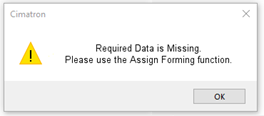
Click OK and re-run the problem function. All problematic functions will be displayed in the alert; Run them in the correct sequence (as displayed in the alert) to generate a valid data set. -
If the mandatory data is all present, the final configurable options are shown in the submission form.
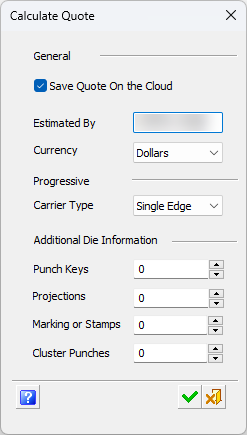
Field Description Save Quote on the Cloud
Optionally save a copy of the final quote data to the cloud. It can then be retrieved, edited, and reused.
When this checkbox is marked, you must click Yes in the subsequent dialog informing you that the Quote data will be saved to the cloud. If you click no or close the dialog, The Web Costing application will launch but you will not be able to save data to the cloud.
Estimated by
The person who compiled the DieQuote data - Defaults to the username of the user logged into the computer
Currency
Select the Currency the estimate will be calculated in (options are Dollars and Euros).
Carrier Type
Select a value.
Options are - No Carrier, Single Edge, Center, Double Edge, or Frame. See Carrier information for more.
(applies to Progressive Die Quotes only)Punch Keys
Select a quantity
Projections
Select a quantity
Markings or Stamps
Select a quantity
Cluster Punches
Select a quantity

Open the online Help page for this topic

Submit the DieQuote Form

Cancel DieQuote form submission
-
A dialog is displayed informing you that data will be processed in a cloud solution.
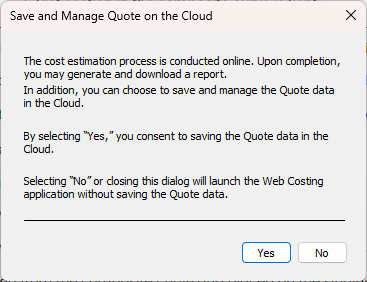
Click Yes to continue.
See Full Terms at https://www.cimatron.com/en/about-this-site/privacy. -
After submitting the form to the Cimatron online estimation site, your default browser window is launched to display the compiled data in a web page connected to the online service.
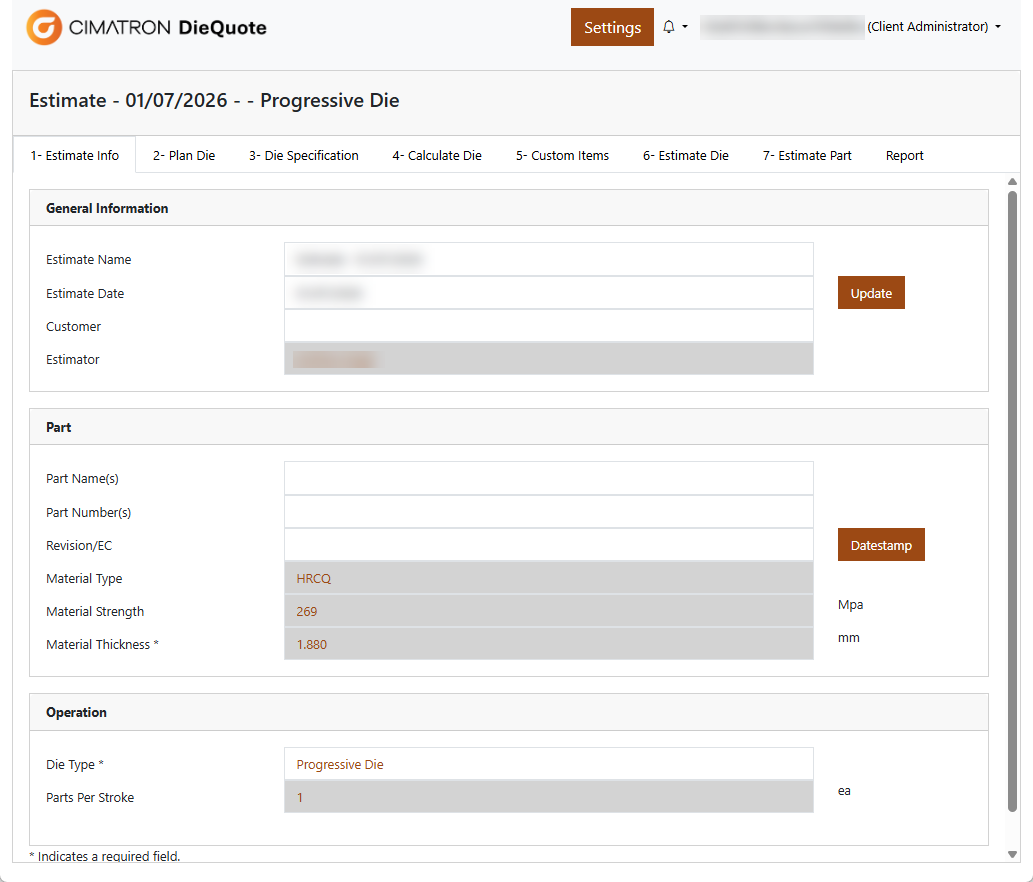
Tip: Bookmark this page for later use.
You can then review and revise this data before generating the estimate. For more, see Die Estimate Window.
- If you are offline or there are other network problems, an alert is displayed.
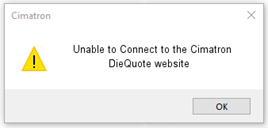
Save the quote data and re-submit the form at a later time. - You will also see an alert if your DieQuote licence is invalid.
- If you are offline or there are other network problems, an alert is displayed.
-
