Assign Forming
This function provides a method to efficiently define the various Forming Operations including single axis bending, multi axis forming, ribs, embosses, extrusions, darts, gussets, and more. The function allows you to specify a single part to produce a truncated strip layout - You can also create an identical mirror of the part.
Important: Only one instance of this function is available in a Die Quote. If the function is used again, it will edit the existing feature.
In this function you can mark the faces that require a forming operation. Faces are selected, and a color is applied to identify which forming operation is to be performed on that face. The available operations include:
- Bending
- Forming (1-6)
- Gusset or Dart
- Emboss or Rib
- Extrude or Sizing
The defined data is collected, processed, and loaded into the Die Quote.
Requirements
- Single Part
- Mirror of this part must be identical
- Die Skin step successfully completed.
Process
-
Click the button in the menu on the right hand side of the graphics pane to open the function.
The Feature Guide is shown here.
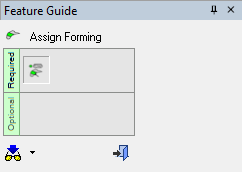
Tip: You can open the Feature Guide at any time by right-clicking the mouse in the graphic display area.
The part is displayed in the forming environment.
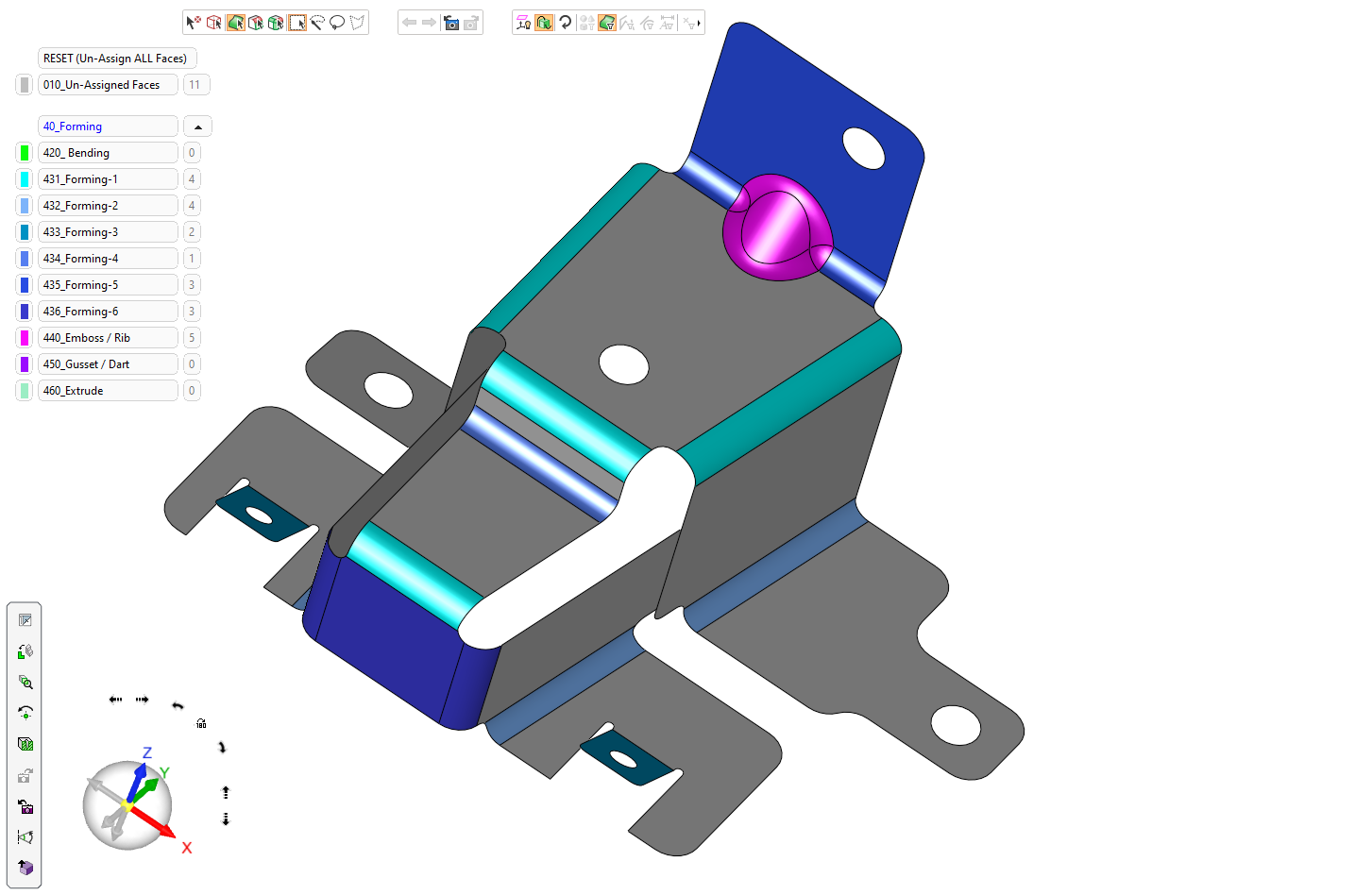
You can only work with faces in this environment; Lines, splines, composite curves, and points in the file are deleted. The Sets pane is displayed below the Feature Tree.
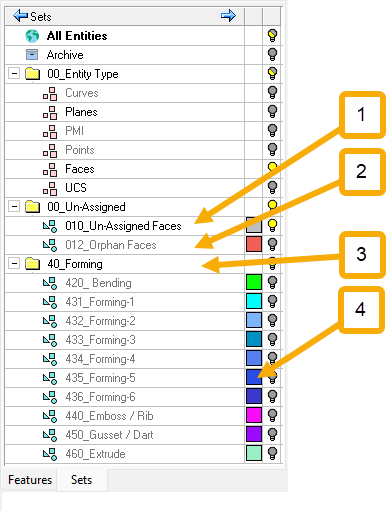
Features in the Forming Sets pane
- Unassigned Faces
- Orphan Faces
- Assigned Faces
- Color Assignment
A Set is a group of entities. Any sets already defined in the part file will be deleted. There are two criteria sets defined for single color and faces. The part faces available for selection are added to the faces set.
Notes:
-
You can define a set by selecting specific entities and declaring that they are part of a specific set (Selection Set) or by declaring that all entities that have specific characteristics (for example, all red lines) are included in a specific set (Criteria Set). These two types of sets cannot be mixed. Each set is either a Selection or a Criteria set, for more on Sets, see Sets.
-
If your part does not have any forming requirements, click the exit button
 in the Feature Guide to add all faces to the Un-Assigned Faces set and move to the next step―An alert is displayed to warn you no faces were assigned a forming operation. You can rerun the Forming operation if you do require forming faces.
Faces that do not require a forming operation should be assigned to the Un-Assigned Faces set. You must assign each face to a Forming set or to the Un-Assigned Faces set.
-
Define the faces that will be added to each forming operation by assigning a color to the part features..
-
Click on a face to select it. Click on a selected face to de-select it. Multiple faces can be selected in one operation.
-
When you have finished selecting faces, click the drop-down to display the available forming options (based on the sets in the Sets window) and select an option to assign a color.
The applied color indicates which operation you want to run on the selected faces. -
Repeat the process to assign a color to each face. Faces can be re-assigned to a different set if required - Click the face to reassign and apply a different color.
-
Selected faces can be unassigned using the Unassigned Faces button, or you can remove assignment from all faces using the Un-Assign All Faces button.
-
When you have assigned all the faces required for each operation, click the exit button
to complete this step.
-
-
The function processes ALL the faces in the Forming Sets and calculates the data using the criteria in the following table:
SETs list
Data Block Parameter
Calculation
420 - Bending
Bending / Flange – Punch Qty
Total # of groups
420 - Bending
Bending / Flange – Metal Forming Size
SUM of all the bounding box diagonal lengths
450 – Gusset / Dart
Gusset / Dart – Punch Qty
Total # of groups
450 – Gusset / Dart
Gusset / Dart – Metal Forming Size
SUM of all the perimeters of all the groups
440 – Emboss / Rib
Emboss / Rib - Punch Qty
Total # of groups
440 – Emboss / Rib
Emboss / Rib - Metal Forming Size
SUM of all the perimeters of all the groups
460 - Extrude
Extrude / Sizing - Punch Qty
Total # of groups
460 - Extrude
Extrude / Sizing - Metal Forming Size
SUM of all the perimeters of all the groups
431 – Forming-1
432 – Forming-2
433 – Forming-3
434 – Forming-4
435 – Forming-5
436 – Forming-6Draw / Crash – Punch Qty
Total # of groups
431 – Forming-1
432 – Forming-2
433 – Forming-3
434 – Forming-4
435 – Forming-5
436 – Forming-6Draw / Crash – Metal Forming Size
SUM of all the perimeters of all the groups
431 – Forming-1
432 – Forming-2
433 – Forming-3
434 – Forming-4
435 – Forming-5
436 – Forming-6Draw / Crash Area
SUM of all the face areas of all the groups
