UCS Normal to Plane 
Create a UCS by defining a plane that will be normal to its Z axis.
|
Pick the plane |
The new UCS is created |
|
|
|
Requirements
- Single Part containing geometry
Process
-
Click the button in the menu on the right hand side of the graphics pane to open the function.
The Feature Guide is shown here.
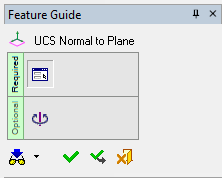
Tip: You can open the Feature Guide at any time by right-clicking the mouse in the graphic display area.
The two options for creating a Normal to Plane UCS are:
-
Required Step 1: Pick a plane or use the display plane on which to create the UCS. After picking the plane, the UCS is positioned on the projection point of the active UCS on the selected plane.
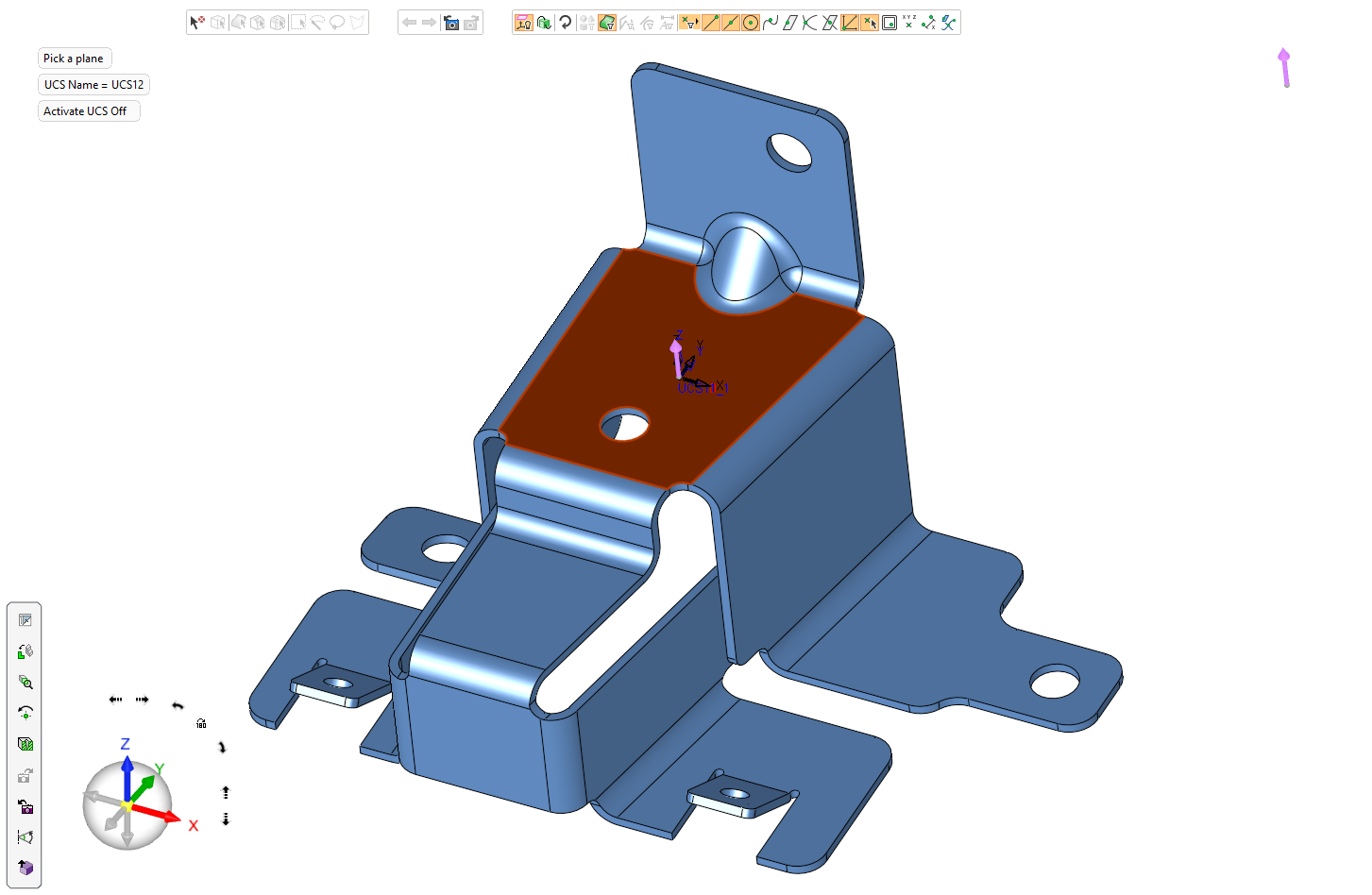
The following parameters are displayed.
Create a UCS on a planar face or plane while the Z direction of the UCS is normal to the picked face/plane and the X-Y directions are defined according to the active UCS. The UCS is positioned on or outside the face according to the active UCS of the part to which the face belongs.
Pick the planar face or plane on which to create the UCS. After picking the plane, the UCS is positioned on the projection point of the active UCS on the selected plane. At this stage, you can pick a point and the UCS will move to this point (provided it is on the plane) or to the projection of this point on the plane.
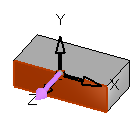
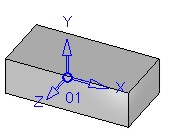
Pick a plane
The new UCS is created with the Z direction of the UCS normal to the picked face/plane
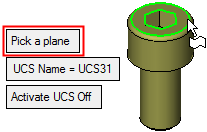
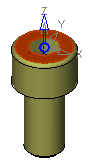
Create a UCS normal to the current display plane and its origin on the picked point. The +Z direction is normal to the screen (display) plane and towards the user (at the time of picking). X is positioned on the right while the Y points to the top of the screen.
Pick the point to define the Z direction of the UCS
The UCS is orientated with the +Z direction normal to the screen
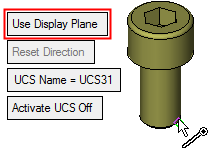
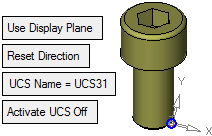
If you pick another point, the origin point of the UCS changes but the UCS orientation does not update. To update the UCS orientation to reflect the current screen orientation, click Reset Direction.
The following parameters are also displayed.
UCS Name
The name of the UCS being created. Click this parameter to edit the name.
Activate UCS Off
This is a toggle option Activate UCS On / Off, which enables you to activate (or not) the UCS being created. The default is ON.
Note: In NC operations, the default is set in NC UCS Preferences (in the Activate Created UCS parameter).
-
Optional Step 1: Rotate the UCS by entering the X,Y, and Z rotation values. The UCS is re-orientated accordingly.
-
Click OKOK
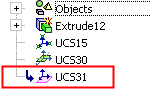
When completed, the UCS feature will appear in the Feature Tree. or ApplyApply
 in the Feature Guide to complete the function.