2D Addendum 
The 2D Addendum creates an offset path around a blanked part to add extra material around the perimeter. This function adds an item in the Feature Guide tree named 2D Addendum, and activates the part named Blank to allow you to add an offset to the part. The display will reset to show the top view.
This option can be added one time to the feature tree but you can click the button again to re-activate the tool and adjust the settings.
Requirements
- The Die Skin function successfully performed (a Blank part or contour must have been created).
Process
-
Click the button in the menu on the right hand side of the graphics pane to open the function.
The Feature Guide is shown here:
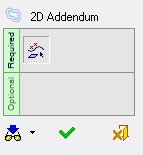
Tip: You can open the Feature Guide at any time by right-clicking in the graphic display area.
-
Required Step 1: Set the offset parameters. The following parameters are displayed:
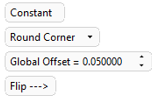
Round Corner
Define the type of extension to be created at the conjunction of offset adjacent entities. This parameter is grayed out if only one entity is picked. The following extension options are available:
No Extension
Do not create an extension at the conjunction of offset adjacent entities. Display only the offsets of the picked entities.
Sharp Corner - Natural Extension
Sharp Corner - Linear Extension
Display a Sharp Corner - Linear Extension at the conjunction of offset adjacent entities.
Round Corner
Display a Round Corner at the conjunction of offset adjacent entities.
Global Offset =
Set the distance of the offset from the picked entities. This parameter is grayed out if the toggle option By Pick is selected.
Flip
This is a toggle option that flip the offset curve to the other side of the picked entities. This parameter is grayed out if the toggle option By Pick is selected.
Flip-->
<--Flip
-
When you have set the parameters, click OKOK
 in the Feature Guide to complete the function. The offset is applied to the entities.
An Offset constraint is added to entities created as a result of an Offset operation in the Sketcher. This constraint relationship ensures the associativity of offset operations after trimming or modifying source or target entities.
Selecting and dragging any of the offset curves, will also move the corresponding source/target elements.
This constraint appears next to the relevant entities. and can be deleted by right-clicking the constraint and selecting Delete from the popup menu.
The constraint relations can also be broken by pressing the ALT key and dragging a source or target entity.
Notes:
-
You can edit the offset curve while in Select mode. However, remember that the curves are constrained to one another.
-
The last parameter values selected in the function are kept as the default for the next time you access the function.
