Tree Pane: Display
The following functions can be invoked to control the display of the Tree Pane.
 |
|
Show or hide the Tree Pane. |
|
|
Show or hide the upper tree. |
|
|
|
Show or hide the lower tree. |
|
|
|
Show or hide the Search bar on the tree pane. Using the tree search will expand the tree and any parts that meet these conditions will be highlighted in a different color. To quickly locate parts that may require attention, the tree symbols for parts are displayed at every level of the subassembly.
Search items in the Tree Pane. The search can be performed in the Assembly environment (including when a part is active) and also the Part environment. The search is performed on the upper and lower trees, if they are visible. |


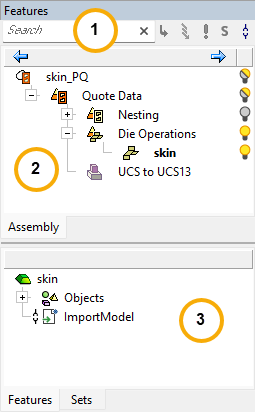
The following tree types are displayed in Cimatron:
| 1 |
Tree Search |
Using the tree search will expand the tree and any parts that meet these conditions will be highlighted in a different color. To quickly locate parts that may require attention, the tree symbols for parts are displayed at every level of the subassembly. |
| 2 |
Features Tree |
The Features tab (containing the Feature Tree) and the M-View tab appear in all Cimatron environments except for Drafting. |
| 3 |
Sets Tree |
The Sets tab appears in all applications. The Sets tab appears in the upper and lower sections of the tree pane. The upper section displays the Sets belonging to the main Assembly or Drawing, while the lower pane displays the sets belonging to the active file. If the main assembly is active, both Sets tabs show the same data. |
Note: For more information on specific functions, see the main CImatron Software Help Pages.
