Tree Pane: Search
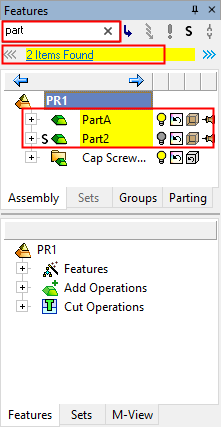
Show or hide the Search bar on the tree pane. Using the tree search will expand the tree and any parts that meet these conditions will be highlighted in a different color. To quickly locate parts that may require attention, the tree symbols for parts are displayed at every level of the subassembly.
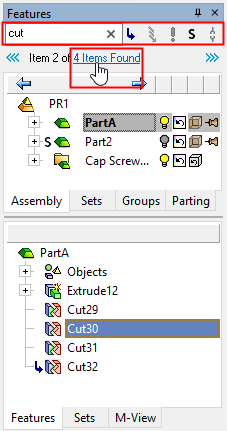
The Search bar appears at the top of the tree pane.
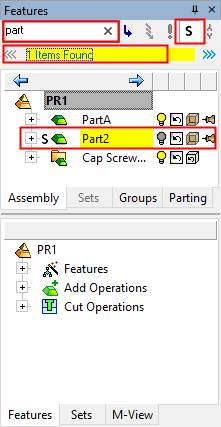
In addition to searching the tree by keyword, you can narrow down the search by using different geometric conditions:
Parts that are in insert mode.
Parts that require an update.
Parts that can be updated from the parting assembly.
Parts that are suppressed.
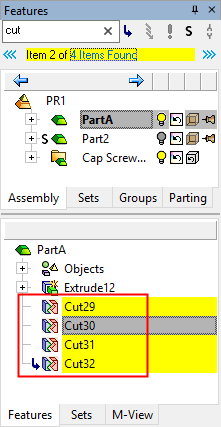
Using the search will expand the tree and highlight the parts that meet these conditions in yellow. To quickly locate parts that may require attention, the tree symbols for parts are displayed at every level of the sub-assembly.
Note: For more information on specific functions, see the main CImatron Software Help Pages.
Using Search in Tree Pane
Toggle the  button in the menu to show the tree Search dialog. Enter the search criteria.
|
|
|
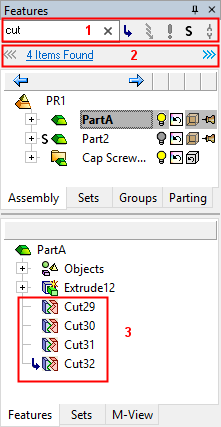
Text Search field and tree symbols. The symbols in the search area become available if they appear in the file. Enter search text and/or click a symbol to search for items. Number of searched items found. Arrow keys are displayed either side to step up or down through the found items. Found items are highlighted.
|
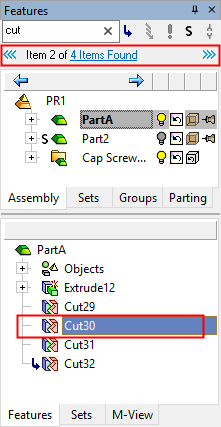
Click the # of Items Found text to highlight all the found items. Use the arrow keys to step up or down through the found items.
|
|
|
Search, as above, but combine with one or more tree symbols to find specific occurrences of the item.
|
|
|