View Menu
The following functions appear under the View menu.
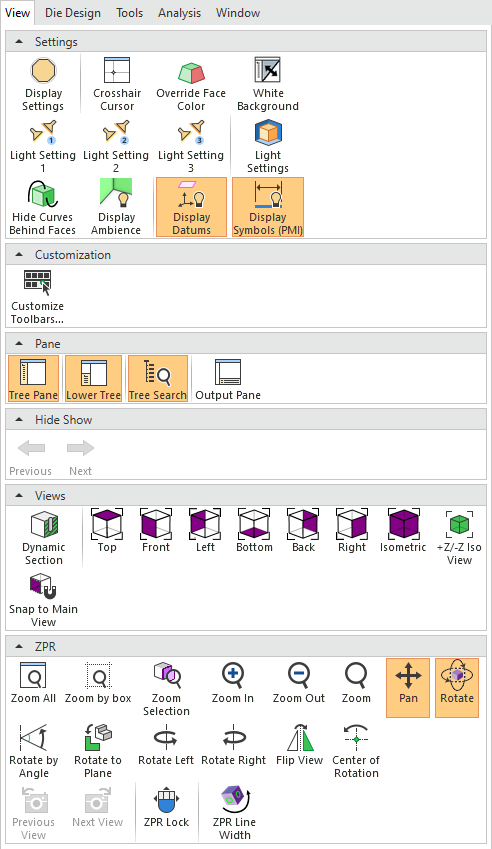
|
Menu Section |
|
Function |
|
|
|
+Z/-Z Iso View |
Define whether ISO view will show ISO view from the top (Core) or Bottom (Cavity). |
|
|
|
Back View |
Display the back view and apply Zoom All (zoom the entire window). |
|
|
|
Bottom View |
Display the bottom view and apply Zoom All (zoom the entire window). |
|
|
|
Customize Toolbars |
Customize Cimatron toolbars and menus, as required, so that functions that you use more often are more readily accessible. |
|
|
|
Center of Rotation |
Select the center of rotation. |
|
|
|
Crosshair Cursor |
Turn the cursor into a cross hair cursor. |
|
|
|
White Background |
Toggle a white graphics window background color on or off, for taking screen shots, prints, and other CAD pictures. The graphics region will suppress whatever background is set by the system general preference and display a white background color, with no gradient. |
|
|
|
Display Ambience |
Turn On or Off the ambient effect (shadow) shown at the edges of occluded faces. |
|
|
|
Display Datums |
Control the visibility of datum entities. |
|
|
|
Display Settings |
Set different parameters affecting display quality and ZPR (Zoom, Pan, and Rotate) speed. |
|
|
|
Display Symbols (PMI) |
Control the visibility of PMI symbolsPMI symbols. Note: For more information on specific functions, see the main CImatron Software Help Pages. |
|
|
|
Dynamic Section |
Create a temporary section along a plane to display a section view. The section view can be moved dynamically. |
|
|
|
Flip View |
Rotate the view by 180 degrees along the Y axis of the display. |
|
|
|
Front View |
Display the front view and apply Zoom All (zoom the entire window). |
|
|
|
Hide Curves Behind Faces |
Hide curves or segments of curves that are behind faces (surfaces). |
|
|
|
Isometric View |
Display the isometric view and apply Zoom All (zoom the entire window). |
|
|
|
Left View |
Display the left view and apply Zoom All (zoom the entire window). |
|
|
|
Light Setting 1-3 |
Select a predefined light setting. |
|
|
|
Light Settings |
Control the lighting, material, and texture of faces. |
|
|
|
Lower Tree |
Show or hide the lower tree. |
|
|
|
Output Pane |
Show or hide the Output Pane. The Output Pane displays system messages. |
|
|
|
Next View |
Rotate to the next view orientation. |
|
|
|
Previous View |
Rotate to the previous view orientation. |
|
|
|
Pan |
Pan the model. |
|
|
|
Right View |
Display the right view and apply Zoom All (zoom the entire window). |
|
|
|
Rotate |
Rotate the model. |
|
|
|
Rotate by Angle |
Rotate the view by a defined angle. |
|
|
|
Rotate Left |
Rotate the model 90° to the left. |
|
|
|
Rotate Right |
Rotate the model 90° to the right. |
|
|
|
Rotate to Plane |
Rotate the selected plane so that it is parallel to the display. |
|
|
|
Snap to Main View |
Rotate the model to the closest main view without changing the zoom level. This will display the model in either the Back, Bottom, Front, Left, Right or Top view, whichever is closest to the orientation of the model before snapping to the view. |
|
|
|
Display the top view and apply Zoom All (zoom the entire window). |
||
|
|
Tree Pane |
Show or hide the Tree Pane. The Cimatron Tree Pane displays information on the currently open file. This information is contained in tabs that are displayed, depending on the currently active file type (Part, Assembly, Drafting, or NC Manufacturing). Examples of the types of trees that are displayed in this pane are the Feature Tree, Assembly Tree, Parting Tree, Electrode Tree, and Drawing Tree. |
|
|
|
Tree Search |
Show or hide the Search bar on the tree pane. Using the tree search will expand the tree and any parts that meet these conditions will be highlighted in a different color. To quickly locate parts that may require attention, the tree symbols for parts are displayed at every level of the subassembly.
|
|
|
|
Upper Tree |
Show or hide the upper tree. |
|
|
|
Zoom |
Zoom in and out. |
|
|
|
Zoom All |
Zoom in or out so that all entities are visible and occupy the entire display area. |
|
|
|
Zoom by Box |
Zoom to the defined box selection size. |
|
|
|
Zoom In |
Zoom in. |
|
|
|
Zoom Out |
Zoom out. |
|
|
|
Zoom Selection |
Zoom in or out to automatically center the display around the selected geometry. |
|
|
|
ZPR Lock |
Zoom, Pan, and Rotate as if the Ctrl key is pressed down. This enables ZPR operations using only the mouse. The display of this option is controlled in Preferences. If the Show ZPR Lock button on interactive UCS toolbar checkbox is ON, the ZPR Lock option is available. |


