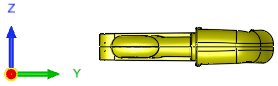
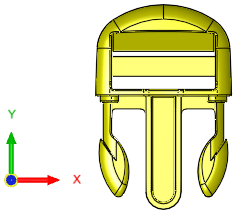
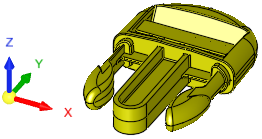
Views
This group of functions is used to display various views of the currently displayed entities.
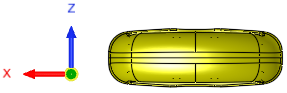
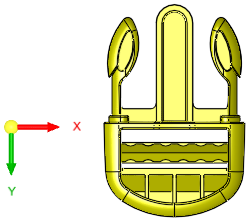
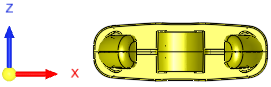
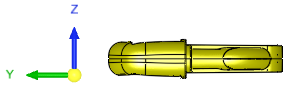
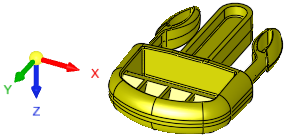
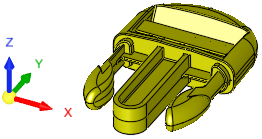
The following views are available: Back, Bottom, Front, Left, Right, Top, Isometric, +Z/-Z Iso, Dynamic Section, Snap to Main View.
|
|
Back View |
Display the back view and apply Zoom All (zoom the entire window).
|
||||
|
|
Bottom View |
Display the bottom view and apply Zoom All (zoom the entire window).
|
||||
|
|
Front View |
Display the front view and apply Zoom All (zoom the entire window).
|
||||
|
|
Left View |
Display the left view and apply Zoom All (zoom the entire window).
|
||||
|
|
Right View |
Display the right view and apply Zoom All (zoom the entire window).
|
||||
|
|
Top View |
Display the top view and apply Zoom All (zoom the entire window).
|
||||
|
|
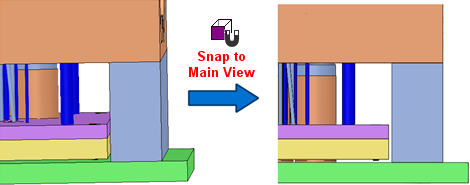
Snap to Main View |
Rotate the model to the closest main view without changing the zoom level. This will display the model in either the Back, Bottom, Front, Left, Right or Top view, whichever is closest to the orientation of the model before snapping to the view. When your viewing orientation is close to one of the main views (for example almost on the Front view) and you want to get it to the closest main view without having to click the Interactive UCS, you may use the Snap to Main View command. It will rotate the view to the closest main view without changing the zoom level. It is recommended to assign a shortcut key to it.
|
||||
|
|
Isometric View |
Display the isometric view and apply Zoom All (zoom the entire window).
|
||||
|
|
+Z/-Z Iso View |
Define whether ISO view will show ISO view from the top (Core) or Bottom (Cavity). Toggle View between +Z/-Z, then click + Z ISO View Display the ISO view with the Z axis pointing upwards
- Z ISO View Display the ISO view with the Z axis pointing downwards
|
||||
|
|
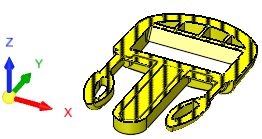
Create a temporary section along a plane to display a section view. The section view can be moved dynamically.
|