Cimatron Explorer  : Properties > General Tab
The Properties pane is located at the far right in the Cimatron Explorer.
Explorer exampleExplorer example
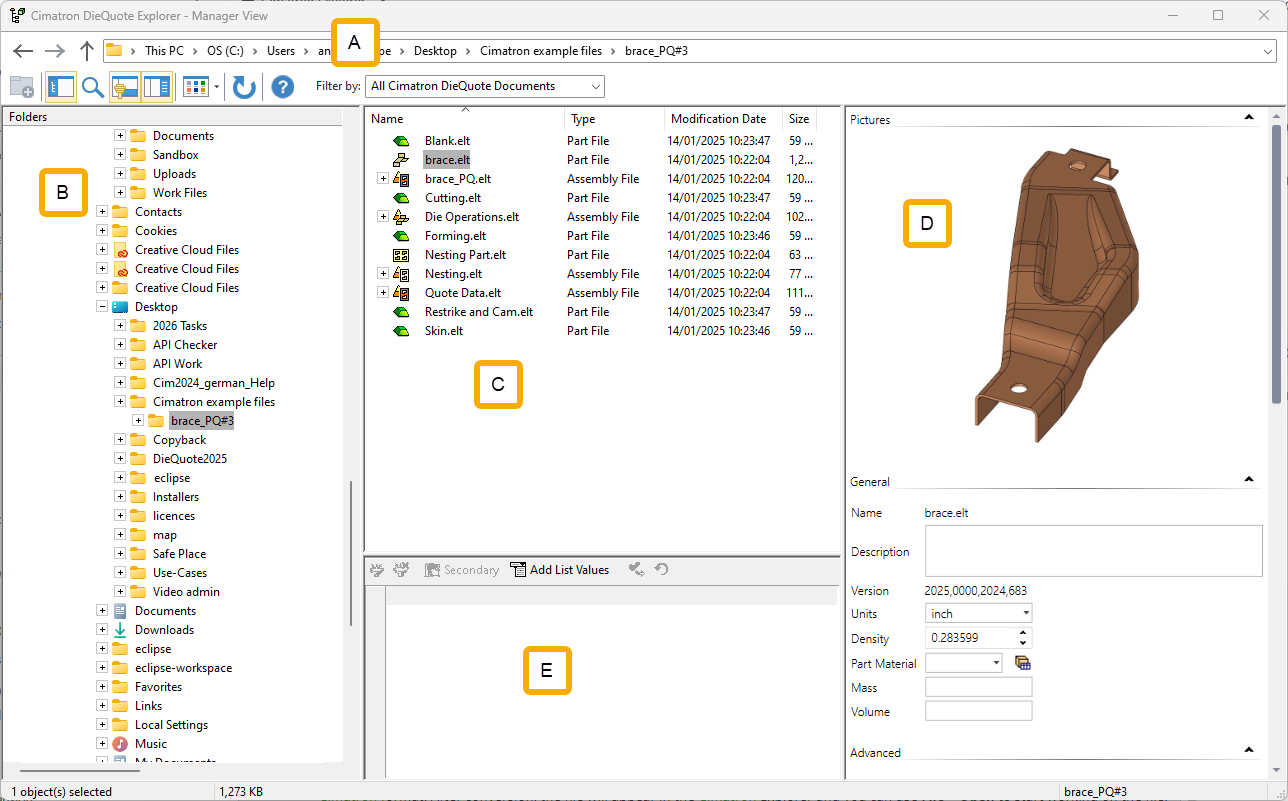
The General tab of the Properties pane displays the General file attributes.
System generated attributes are displayed in the right column of this tab. Attributes values with a gray background cannot be changed.
If the file is not open, some of the attributes can be changed. These attributes are displayed with white background and can either be free text, selected from a dropdown menu, or a checkbox. However, after a file is opened, the file attributes are locked and cannot be changed from the DieQuote Explorer.
This user-entered information can be used as search criteria when running a query.
General Tab Attributes
|
Display the General attributes. |
The General attributes for an unopened file. The attributes within the white boxes can be changed. |
|
|
|
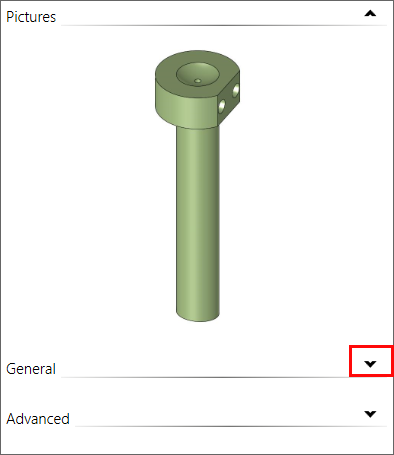
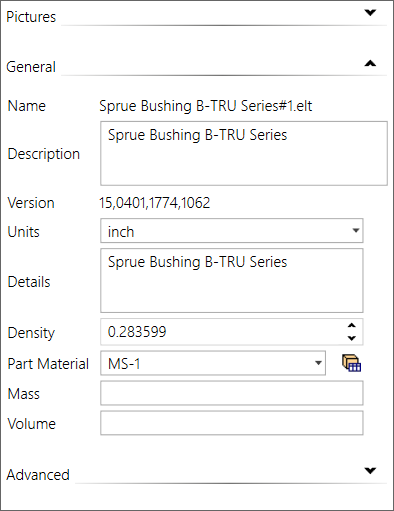
This section shows the file name, general description, the Cimatron version number used for creating/updating the file, units of measurement, and other file-specific details.
Mass and Volume
Mass and Volume are file attributes that are associated with an objects mass and volume. These attributes are blank by default; however, appropriate values can be entered as needed and saved to the file, or populated from the model from the Information Tool. These attributes are listed as Part_Mass and Part_Volume in the Attributes Manager.
Materials
By default, the General tab also displays the Part Material and Density attributes. These values can be updated from the Material Library.
The Material Library is a tool that enables you to define part material properties. This tool is used throughout Cimatron where materials need to be defined.
The Select Materials button  displays the Material Library listing the available part materials (or only the relevant part materials that you want to see). The selected material is then displayed in the adjacent Part Material field, and when you press the Save button (saving any changes), the Density attribute is updated with that of the selected material.
If the Hardness and Heat Treatment attributes appear in the General tab, they are also updated with those of the selected material once you press the Save button. To display the Hardness and Heat Treatment attributes, contact your local Cimatron Provider or Reseller.
After you have selected and saved a material and the relevant attributes are updated with those from the selected material, you can manually change these attribute values later, and the change will not be reflected in any way in the Material Library.
The dropdown arrow in the Part Material field (for unopened files) lists the materials available in the library. When invoked from here, the Material Library is displayed in selection mode (you can only select a material). Materials can be edited only when invoking the Material Library from the menu bar.
Material data is used in the DieQuote Explorer and NC Setup where materials can be assigned to parts and also in the Machine Parameters tab of the Cutters & Holders Dialog where the material is used to filter the appropriate cutting conditions (feed, spin, etc.) of the cutters.
|
Material selection in the Cimatron Explorer: |
Material selection in the NC Setup: |
|
|
|


Notes:
-
You can set the Material Library to display only the relevant part materials when you are selecting a material.
-
Once you have selected a material from the Material Library, select Save to update the Density attribute with that of the selected material. The Save operation also updates the Hardness and Heat Treatment attributes (if they are displayed) with those of the selected material.
These attributes are not write-protected. This means that any material selection will overwrite the existing data of these attributes.
There is a one way update (from the Material Library to the attributes). You can manually change these attribute values later, and the change will not be reflected in any way in the Material Library. -
The Density attribute is displayed in units of Kg/dm3 if the file unit is MM and Pound/inch3 if the file unit is Inch. This information is used in the Measuring and Information tools. If the density value is changed in any of these tools and the file is saved, the change is updated in the file properties (only if the change applies to all components by using either the filter component or using the Apply Density to all button). If you change the density value of all components and then change one object, the attribute gets the value set for all components.
