Properties
The Properties pane displays information of a file selected from the File Control (middle) pane. Initially, this includes a preview picture of the file contents and system generated data. You can add additional information as needed for finding/identifying your files. This information can be used as search criteria when running a query.
In addition to being part of the DieQuote Explorer, the Properties information can also be invoked from the menu bar (displays the properties for the main assembly) or from the Assembly Tree popup submenus (displays the properties for the selected component). Click Access at this top of this Help topic for additional information.
This Properties pane contains the following tabs:
Navigating this pane
Click the arrow icons to open and close the various tabs in this pane.
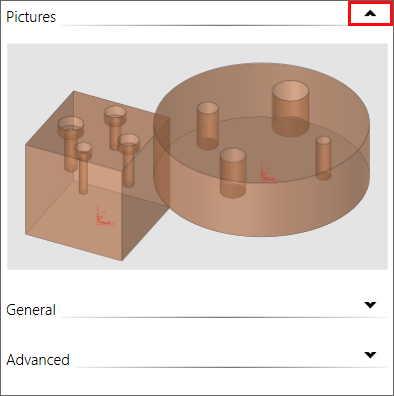
Initial Display
Initially, when saving for the first time, this pane is empty.
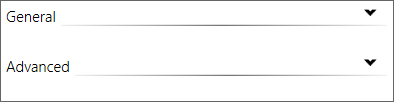
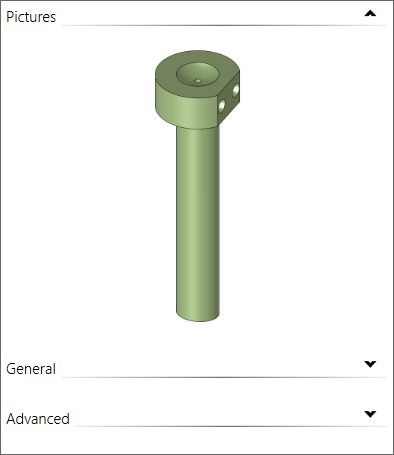
At the first save, the system enters default data into this pane, including a picture of the file contents and data in the General and Advanced tabs.
Pictures tab
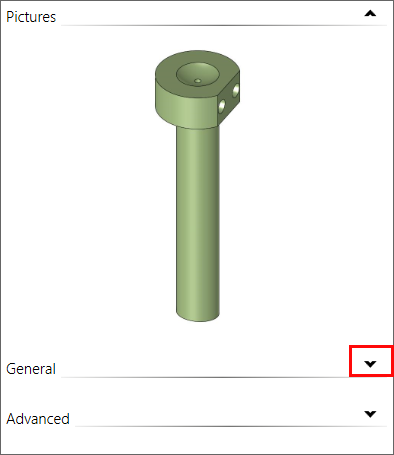
When you select a file from the File Control pane in the DieQuote Explorer, a preview of the file contents is displayed in the Pictures tab (only if an image of the file contents has previously been saved).
General tab
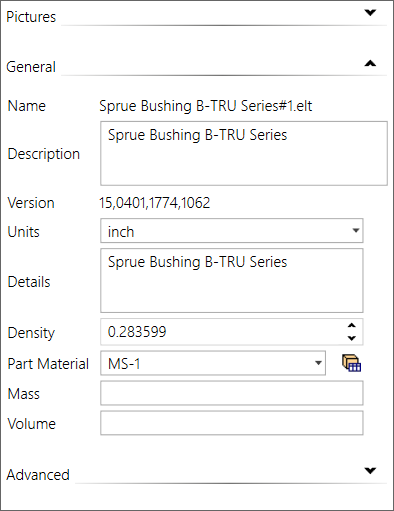
This tab displays the General file attributes.
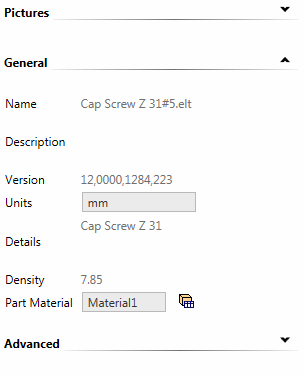
System generated attributes are displayed in the right column of this tab. Attributes values with a gray background cannot be changed.
If the file is not open, some of the attributes can be changed. These attributes are displayed with white background and can either be free text, selected from a dropdown menu, or a checkbox. However, after a file is opened, the file attributes are locked and cannot be changed from the DieQuote Explorer.
This user-entered information can be used as search criteria when running a query.
|
Click the arrow icon to display General attributes. |
The General attributes for an unopened file. The attributes within the white boxes can be changed. |
The General attributes for an opened file. Attributes for open files cannot be changed from the DieQuote Explorer. |
|
|
|
|
Advanced tab
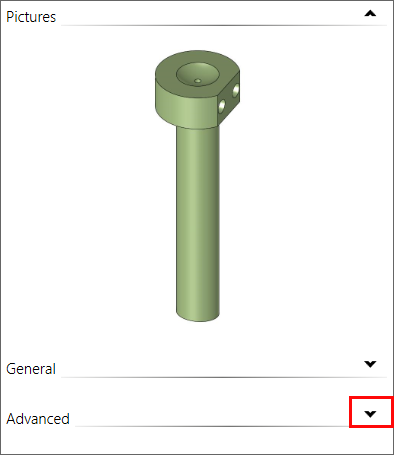
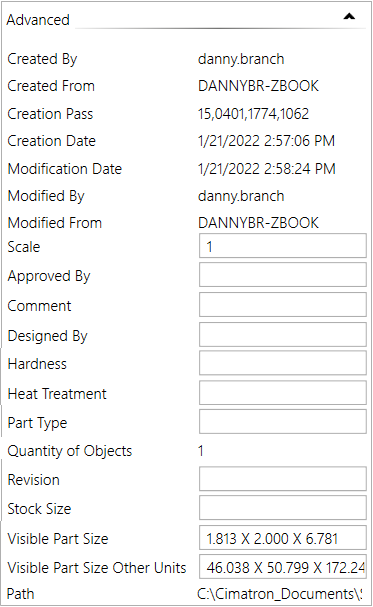
This tab displays the Advanced file attributes.
System generated attributes are displayed in the right column of this tab. Attributes values with a gray background cannot be changed.
If the file is not open, some of the attributes can be changed. These attributes are displayed with white background and can either be free text, selected from a dropdown menu, or a checkbox. However, after a file is opened, the file attributes are locked and cannot be changed from the DieQuote Explorer.
This user-entered information can be used as search criteria when running a query.
|
Display the Advanced attributes. |
The Advanced attributes for an opened file. Attributes for open files cannot be changed from the DieQuote Explorer. |
|
|
|
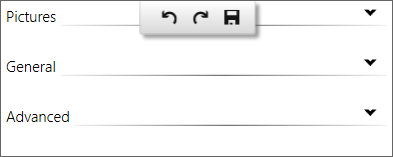
Changes Approval Options
Changes to the data in this pane may be saved. When a field is edited, the Changes Approval Options appear at the top of the pane.