DieQuote Explorer: File Control
The File Control is the middle pane of the DieQuote Explorer.
Explorer example:Explorer example:
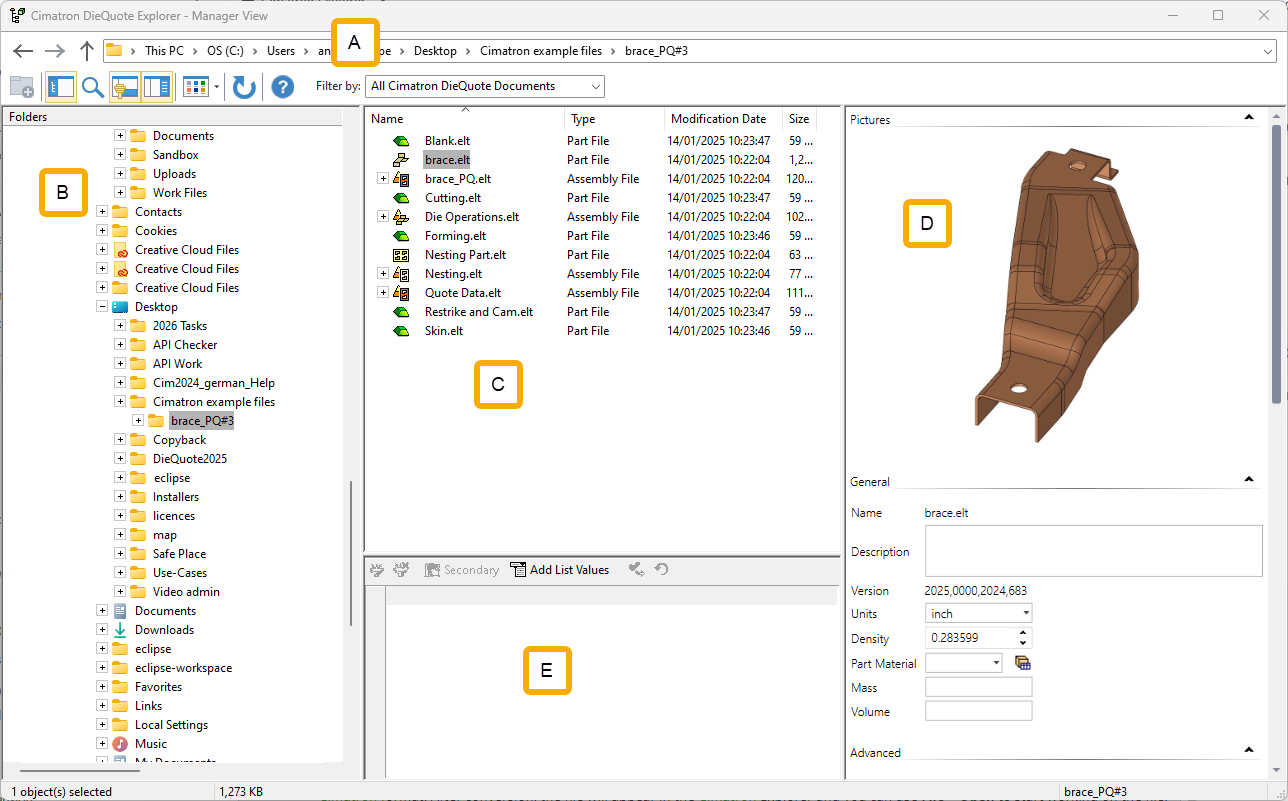
The File Control pane displays the contents of the folder indicated in the Folder Tree pane of the DieQuote Explorer. This is the default pane and includes sub-folders and files.
Notes:
-
Switch between different views of files by using the Tile View button in the DieQuote Explorer.
-
Close the Folder Tree and Properties panes to enlarge the File Control pane.
The file folder contents as well as the Catalogs contents can be viewed. The columns displayed in this section can be customized by using the Column Chooser.
The DieQuote Explorer tree displays file icons and file status symbols:
The file icons show the file type (Part, Assembly, Drafting, NC, etc.).
The file status symbols show the status of individual features or components (such as whether a part requires updating, whether it is an associated or dependent part, etc.).
In this section
File Selection
Single or multiple files may be selected in the File Control area of the DieQuote Explorer.
When selecting a single file, either double-click the file or single-click it and press the Open/Select button.
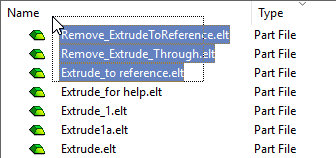
When selecting multiple files, either select the required files individually or select them by drawing a box, and press the Select button.
|
|
|
|
Multiple file selection, By Box |
File Icons
The contents of this pane can be sorted by column and the order of the columns can be changed by dragging and dropping them.
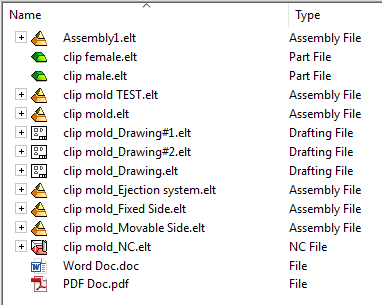
Depending upon the file types selected in the filter above, the folder may contain Cimatron files. These files are displayed with specific icons which identify the file type. These are:
|
Some of the basic DieQuote Explorer file icons: |
In addition, the folder may also contain other related files such as Microsoft Word, Microsoft Excel, G-Code, DI, NC Templates, etc. Each of these files are displayed with their own specific Windows icons. |
|||||||||||
| General File Icons | File Icons in the Explorer | |||||||||||
|
 |
|||||||||||


Assembly File Contents - Blue Area
When expanding an Assembly file in the DieQuote Explorer, the children of the assembly file (sub-assemblies, parts, and so on) are displayed within a blue background.
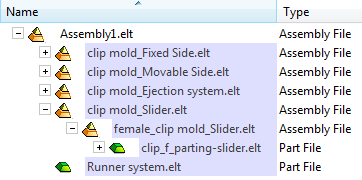
The items within this blue area are instances of files located on the disk. To display the location of a selected entity on the disk, use the Show Location on Disk popup option.
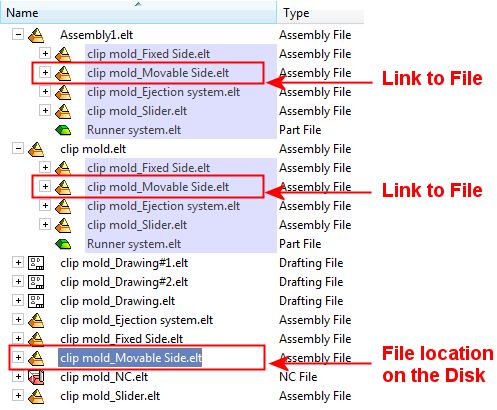
File Symbols
File symbols are displayed for Disconnected files (files that have a missing link) and alert you to reconnect files where their connection is missing. Files can have a missing link (get disconnected).
Files may have one of the following link status conditions: Disconnected Link, Ignored Link, or Broken Link and are displayed with symbols signifying their link status.
The following symbols indicate a link status condition:
|
Connected |
These are links that exist and are connected. These files are not displayed with a special symbol. |
|
|
|
Parent with a child that has a Missing link |
These are parent folders/files with one or more children that have missing or disconnected links. |
|
|
Missing/Disconnected link |
These are links that are missing and require an action (reconnect, ignore, or break). These status conditions do cause the Reconnect File dialog to be displayed. |
|
|
Parent with a child that has an Ignored or Broken link |
These are parent folders/files with one or more children that have either Ignored or Broken links. |
|
|
Ignored link |
These are links that will be ignored if the file they point to cannot be found. These status conditions do not cause the Reconnect File dialog to be displayed. If the missing file re-appears, it is automatically reconnected and loaded. Once an ignored file is found, the Ignore status is lost. If the connection to the file is lost again, it is mark as a Disconnected (missing) link. These links will appear as ignored in the DieQuote Explorer and the Reconnect File dialog (when it is displayed), but they are not included in a CTF file. |
|
|
Broken link |
These are links that you decide to keep broken. These status conditions do not cause the Reconnect File dialog to be displayed. The system will always ignore these links when loading the server file (as if the link does not exist). These links will appear as broken in the DieQuote Explorer and the Reconnect File dialog (when it is displayed), but they are not included in a CTF file. |
|
|
Reconnected |
These are links that were either disconnected or ignored, but have since been reconnected. Reconnected files are displayed with a green check mark symbol. This symbol is removed after saving the file. |


Catalog Contents
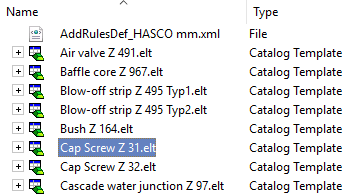
Each folder may contain Cimatron Catalog items and associated files. Catalog items are identified by the following icon:  .
.
Note: NC Sequence Catalog items are identified by the following icon: