Offset
Offset an edge or curve.
Create one or more curves by offsetting a 2D or 3D curve. The offset is can either be a constant or variable distance from the original curve.
|
|
|
General Interaction
The following is the Feature Guide for Offset.
|
|
Tip: You can open the Feature Guide at any time by right-clicking the mouse in the graphic display area. |
Required Step 1  :
:
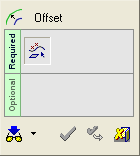
Select the 2D/3D curve or sketch to be offset. You can only pick one curve but you can join several curves into one curve by using the Composite Curve function.
-
For a Constant offset:
-
Pick a wire/curve
-
Enter a general offset value
-
Indicate the offset side
-
-
For Variable offsets:
-
Pick a wire/curve
-
Pick points on the wire
-
Define the offset value / side for each point
-
Required Step 1
-
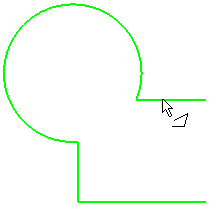
Pick the 2D/3D curve or sketch to be offset. You can only pick one curve but you can join several curves into one curve by using the Composite Curve function.
The following parameters are displayed, depending on the option selected.

-
For a Constant offset:
-
Pick a wire/curve
-
Enter a general offset value
-
Indicate the offset side
-
-
For Variable offsets:
-
Pick a wire/curve
-
Pick points on the wire
-
Define the offset value/side for each point
-
-
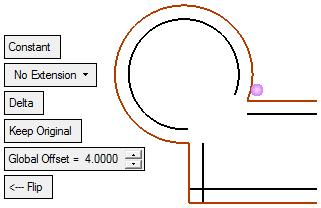
A preview of the offset appears with a directional arrow, as shown below. You can flip the direction of the Offset by clicking the arrow head or body or you can click on the arrow origin to set another direction.
Parameters
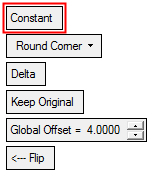
Constant / Variable
This toggle option creates constant or variable distance offsets from the reference curve.
Constant
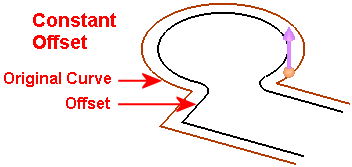
Create an offset at a constant distance from the original curve. The constant offset distance is defined by the Global Offset parameter.
Variable
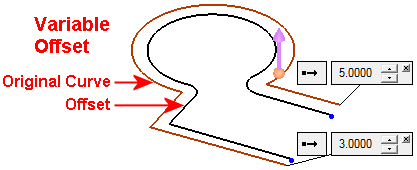
Create an offset at a variable distance from the original curve. The default offset distance is the same as that defined by the Global Offset parameter for the Constant offset. A variable offset distance can be set at the end point(s) of the original curve.
A point and offset value label is automatically displayed at the end of the original curve. The point lies on the offset curve and the offset value displays the distance of the offset curve from the original curve (at that point). If an offset value greater than 0 is entered, a flip button (
 /
/ ) is displayed enabling you to flip the corresponding offset point to the other side of the original curve, as shown in the example above.
To set more variable offsets, pick additional locations on the original curve to display the point and offset value labels at those locations. Set these parameters at each location, as required.
For variable offsets of 2D curves, the Natural Extension option is not available.
For variable offsets of 3D curves, only the Round Corner option is available and is displayed grayed out.
No Extension
This is a dropdown list of options for creating the offset.
Delta /
By PickToggle option to either define the offset by setting a delta distance (Global Offset) or by picking a point to which the curve will be offset (determining delta and direction).
If the point is on a different plane to the curve, it is projected onto the same plane. In this case, the offset is defined by the value of the closer entity to the point (normal).
Keep Original / Remove Original
Toggle option to either keep or remove the original geometry.
This will not delete edges.
Global Offset
Set the distance the new geometry is to be offset from the reference geometry.
Flip -> /
<- FlipToggle option to flip the resulting geometry to either side of the reference geometry.
-
Click OKOK
 or ApplyApply
 in the Feature Guide to complete the function.
