Reset Preferences
Reset the Preferences defaults for the entire system, either to the system defaults or to user-defined defaults (My Default Preferences). Cimatron must be closed before resetting the Preferences.
Resetting Preferences
Close Cimatron.
Note: You must exit Cimatron before resetting Preferences. If you do not exit Cimatron, a dialog will appear. Click the OK button to exit the dialog, then return to Cimatron and close the application.
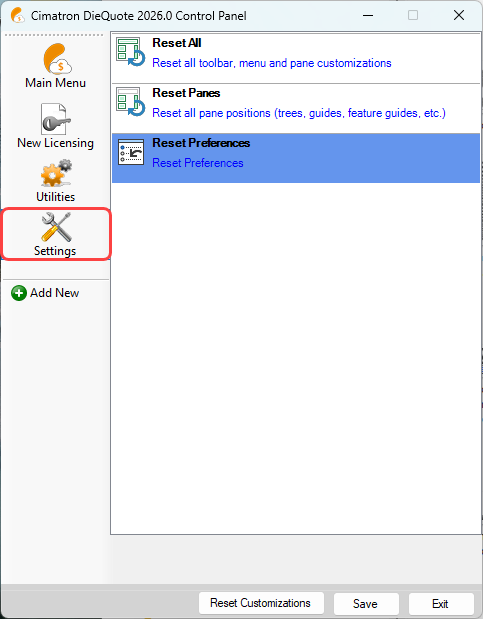
From the Control Panel, select the Settings tab.
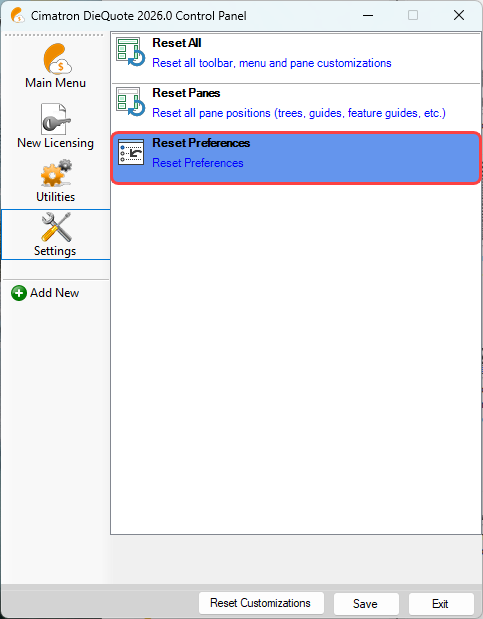
Double-click on the Reset Preferences option.
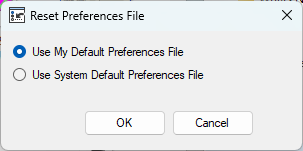
The Reset Preferences File dialog is displayed. Select the appropriate option and click OK.
|
Use My Default Preferences File |
Loads the user-defined default preference file with default settings for the entire system. My Default Preferences are stored in the following folder location/file: See My Default Preferences for more information. |
|
Use System Default Preferences File |
Loads the system default preference file with default settings for the entire system. System Default Preferences are stored in the following folder location/file: . . . ProgramData\Cimatron\Cimatron\<Current_Version_No>\Data\Resource\CimatronE.prf See Cimatron Preferences for more information. |
