Cimatron Control Panel > Utilities
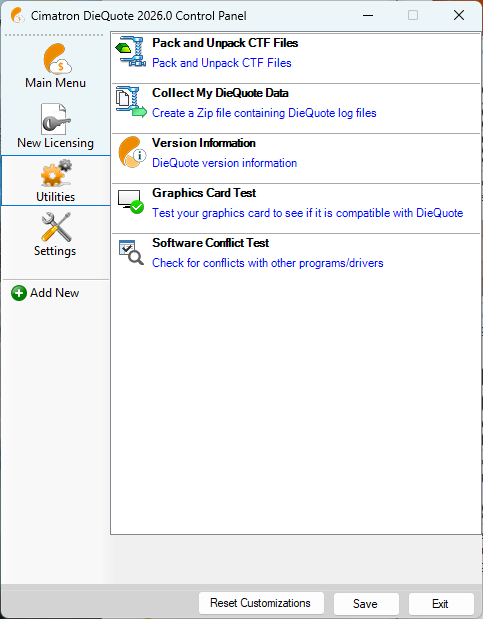
Run various applications from the Utilities tab of the Control Panel (see below).
|
Pack and Unpack CTF files |
|
|
Collect My Cimatron Data |
Create a ZIP file containing Cimatron installation data from your PC. Amongst other uses, this tool can also be used for support-related issues. |
|
Version Information |
Display Cimatron version information. |
|
Graphics Card Test |
Test your graphics card to see if it is compatible with Cimatron. |
|
Software Conflict Test |
Check for a software conflict test if one of the following occurs: Cimatron cannot start and one of the following error messages is displayed: The application was unable to start correctly (0xc0000142). Click OK to close the application. The application was unable to start correctly (0xc0000005). Click OK to close the application. Cimatron cannot start, but no error message is displayed. Cimatron does start, but no text shows up (Menu, Toolbar, etc.). |
When you have finished using the Control Panel, select the appropriate approval option below.
Approval Options
The following options appear at the bottom of the Cimatron Control Panel:
Reset Customizations |
Reset all customizations to the Control Panel. This resets the Control Panel back to the default settings. |
Save |
Save all customizations. |
Exit |
Exit the Control Panel. If you have customized the Control Panel and pressed Exit before saving, you are prompted to save your changes before exiting. |
